- Category
- Tracking & measurement
- What it changes
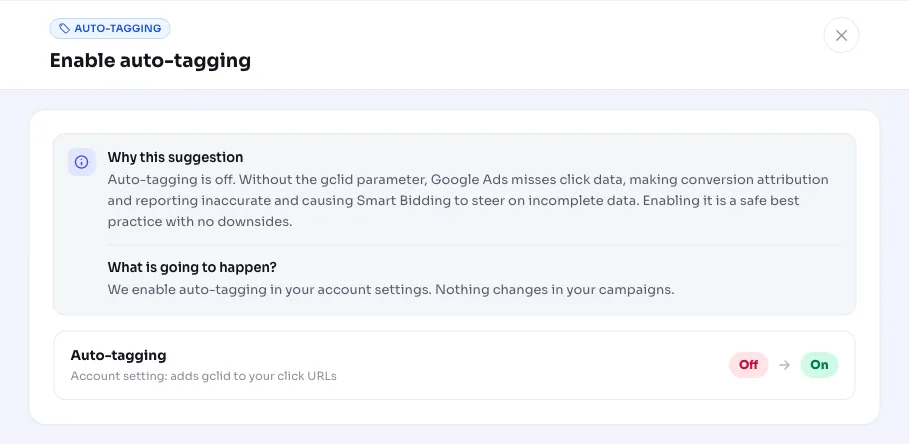
- Turns on auto-tagging at account level (auto_tagging_enabled = on)
- Reversible
- Yes, can be turned off again in one click
- Data we use
- The account-level auto-tagging setting (on or off) and the account name
- Typical trigger
- Auto-tagging is off on the account
- Priority
- High, it's part of the measurement layer that underlies bidding and scaling
What it flagsAuto-tagging is off on your account
What is auto-tagging in Google Ads? It's an account setting that automatically appends a unique parameter (the gclid) to your ad's destination URL on every click. Google Ads later recognizes that click using the gclid, for example when someone makes a purchase or fills in a form.
This recommendation appears as soon as AdBuilder sees that auto-tagging is off on your account. It's a simple on-or-off signal at account level: there's no gray area, the setting is either on or off. If it's off, your measurement is missing the foundation everything else relies on.
Why it mattersWithout a gclid, your conversion tracking is crippled
Without the gclid parameter, Google Ads can't reliably link a click to a later conversion. The result is that your conversion attribution and reporting become inaccurate: conversions end up on the wrong campaign, get counted twice, or are missed altogether.
That doesn't just affect your reporting. Smart Bidding is driven by conversion data, and if that data is incomplete, the bidding algorithm makes decisions based on a distorted picture. Turning on auto-tagging is a safe best practice with no downsides: it lays the foundation under your conversion tracking, and with it, every bidding and budget decision you make afterward.
How it worksHow AdBuilder checks auto-tagging
AdBuilder reads the auto_tagging_enabled setting from your account on every analysis. The recommendation fires exactly when that setting is off and a valid account reference is available. If auto-tagging is already on, nothing appears, and any older flag is automatically cleared.
There's no lookback window and no conversion threshold needed. It's not a performance measurement over a period, it's a check on a single account setting, so it always runs, even on accounts with little or no conversion volume. That's exactly where it matters most that measurement is right from the start.
- Trigger: auto-tagging is off and a valid account reference is present.
- Source: the account-level auto-tagging setting (on or off).
- No lookback window and no conversion threshold: the check runs on every analysis.
- If auto-tagging is on, AdBuilder suppresses the recommendation and clears any old flags.
What you can doTurn on auto-tagging in Google Ads in one click
AdBuilder can turn on auto-tagging for you in one click. It sets the account-level auto-tagging setting to on. That's exactly the same action you'd take yourself in Google Ads under your account settings, just without having to dig through the menus.
The change is reversible: if you want to go back to the old setup, AdBuilder can turn auto-tagging off again. You don't need to change anything about your URLs, Google will start adding the gclid to every click automatically from that point on. If you'd rather do it manually, you'll find the setting in Google Ads under your account settings.
- Turn it on in one click: AdBuilder turns on auto-tagging on your account.
- Revert: switch the same setting back off, whenever you like.
- You can also do it yourself: enable auto-tagging via your account settings in Google Ads.
Frequently asked questions
What is auto-tagging in Google Ads?
Auto-tagging is an account setting that automatically adds a unique parameter (the gclid) to the URL of every ad click. This lets Google Ads later link a click to a conversion, without you having to change anything about your links.
What is the gclid?
The gclid (Google Click Identifier) is the unique code that auto-tagging adds to your destination URL. It identifies the specific click, so conversions get attributed to the right campaign, ad group and keyword.
Does AdBuilder turn on auto-tagging automatically for me?
No. AdBuilder only flags that auto-tagging is off and offers to turn it on in one click. You decide if and when the change is applied.
Can I turn auto-tagging off again?
Yes. The change is reversible: AdBuilder can just as easily turn auto-tagging off again. In practice, turning it off is rarely needed, since turning on auto-tagging is a safe best practice with no downsides.
Does this have anything to do with enhanced conversions?
They're both part of your measurement setup, but they're separate things. Auto-tagging uses the gclid to make sure clicks can be linked to conversions; enhanced conversions enrich that measurement with extra (hashed) customer data. Auto-tagging is the foundation you want in place regardless.